Your Magister or Somtoday timetable in your plan
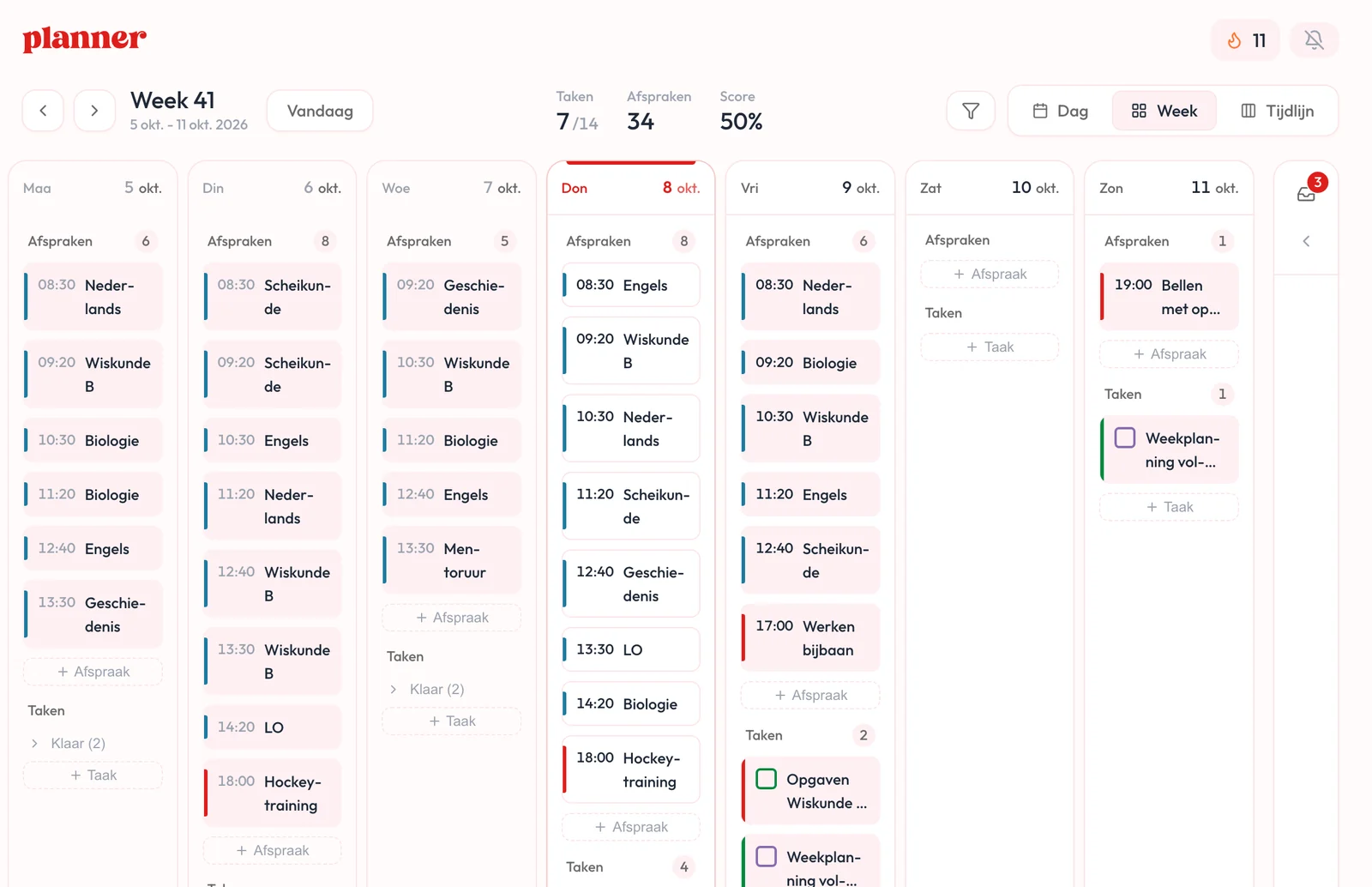
Connect your timetable from Magister or Somtoday to Able to Plan and you see your lessons next to your tasks. Here you read where to find the calendar link, what does and does not come along, and what to do if your calendar stays empty.
Updated


What do you need?
You connect your timetable with a calendar link from Magister or Somtoday. You paste that link into Able to Plan once.
- 1
Your school account
You log in to Magister or Somtoday. In Magister you create the calendar link in the web version, in your browser. The Magister app does not have this setting yet.
- 2
For Magister: a school that turns it on
In Magister, your school decides whether you can share your calendar. If you do not see Agenda delen, your school has not requested it yet. Ask your school about it.
- 3
Able to Plan Premium
Connecting your timetable is part of Premium. You can try it for free during the trial.
How do you connect your Magister timetable?
First you create your calendar link in Magister, then you paste it into Able to Plan. Magister’s menus are in Dutch, so the names below are the Dutch ones.
- 1
Open Magister in your browser
Log in through the web version of Magister.
- 2
Go to Agenda delen
Open your personal menu, where you also find uitloggen (log out), and choose Instellingen (settings). There you find Agenda delen (share calendar).
- 3
Copy the link
Agenda delen shows your calendar link with a button to copy it.
- 4
Paste the link into Able to Plan
On your phone, go to More, Settings, Manage calendar connections and choose iCal / External calendar and then Magister. On the web, in the Calendar, choose Import iCal under Calendars and then Link Magister. Paste the link and choose Link or Import.
How do you connect your Somtoday timetable?
In Somtoday you also get a calendar link first. Somtoday calls it an iCalendar token: a long link that you copy. Somtoday’s menus are in Dutch too.
- 1
Log in to Somtoday
Click the three lines at the top left.
- 2
Go to Instellingen and Agenda
Choose Aan de slag (get started). Somtoday takes you through linking your timetable step by step.
- 3
Copy the link
Copy the calendar link that Somtoday gives you.
- 4
Paste the link into Able to Plan
On your phone, go to More, Settings, Manage calendar connections and choose iCal / External calendar and then Somtoday. On the web, in the Calendar, choose Import iCal under Calendars and then Link Somtoday. Paste the link and choose Link or Import.
What do you see of your timetable in your plan?
This is what you see in Able to Plan once your timetable is connected.
- 1
Your lessons
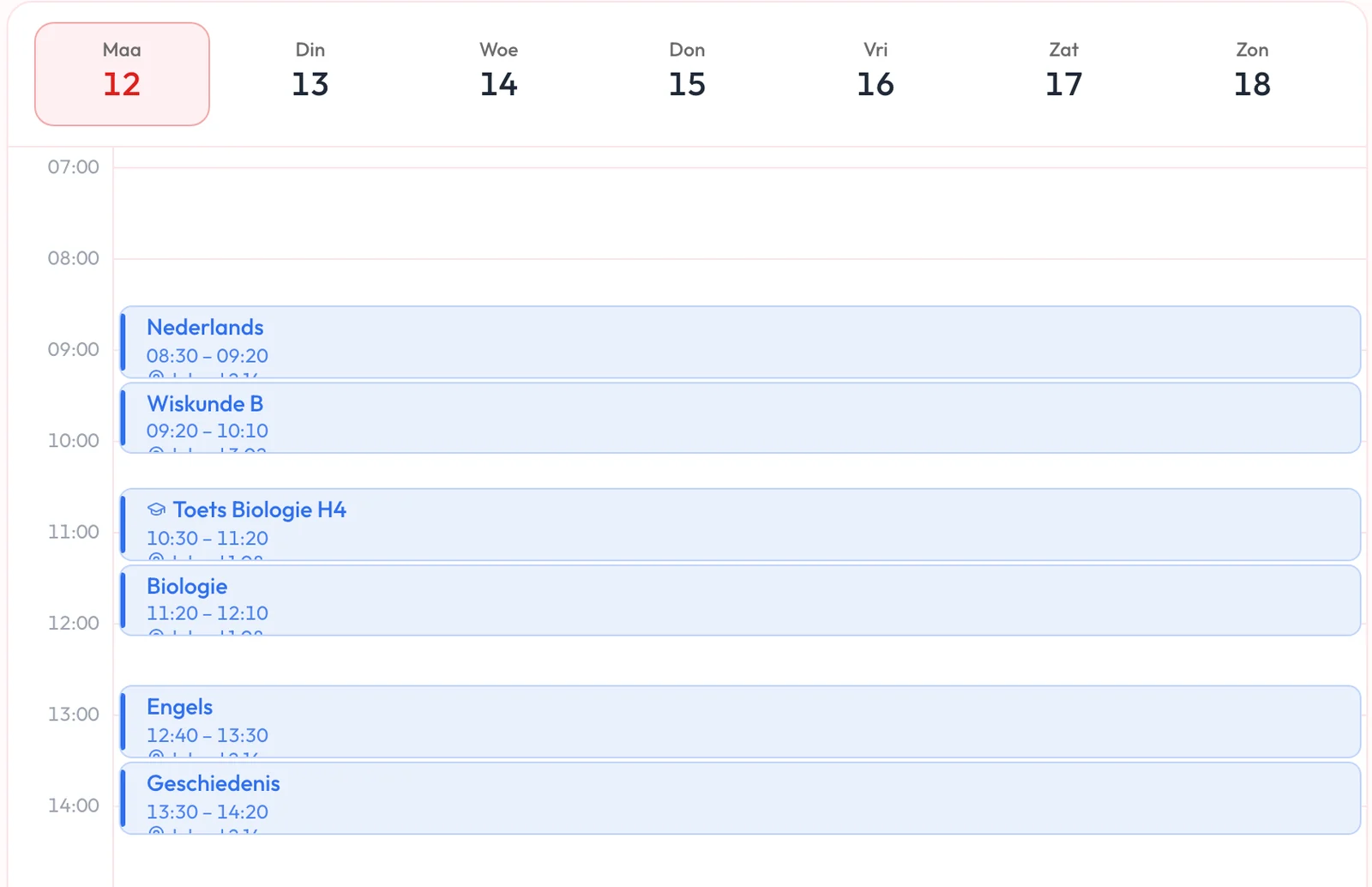
Your lessons go into your calendar, with their title and times.
- 2
Timetable changes
If a lesson moves or is cancelled, you see it as soon as Able to Plan fetches your timetable again. That happens when you open the app, and you can also sync it yourself. Magister updates the link with every change.
- 3
Three weeks in Magister
The Magister link holds the current week and the next two weeks.
- 4
No homework or tests
Homework and tests are not in the calendar link from Magister and Somtoday. You add your tests to Able to Plan yourself.
- 5
You edit lessons in your school system
You cannot edit a lesson from your timetable in Able to Plan. You do that in Magister or Somtoday.
Your tests between your lessons and tasks
Because tests are not in the calendar link, you add them to your calendar yourself. If the title contains a Dutch word like toets, SO or proefwerk, the app marks the appointment as a test and gives it a graduation cap. You can also mark an appointment as a test yourself. Pip then suggests study sessions on the days before, and you choose how many.
Not working?
These are the things that go wrong most often, and what you can do about them.
- 1
You do not see Agenda delen or Aan de slag
In Magister, your school has not requested the feature yet, or the request is still pending. Ask your school about it.
- 2
Your calendar stays empty
Magister only shares the current week and the next two weeks. If a holiday falls in that period, there is nothing to see. During the summer holidays, Magister pauses Agenda delen for students.
- 3
Your timetable no longer updates
If you created a new link in Magister or stopped sharing, the old link no longer works. Copy your new link, remove the old connection in Able to Plan and add the new one.
- 4
You do not see a change yet
Able to Plan fetches your timetable again when you open the app. If you do not want to wait, choose Sync in the calendar’s menu on your phone, or Sync now in the settings on the web.
- 5
The link is not accepted
Paste the whole link. Able to Plan accepts links that start with https:// or webcal://.
Other systems and questions
Does your school use something other than Magister or Somtoday? If that system offers a calendar link, paste it under Your own iCal link on your phone or iCal link on the web.
Does it work with Zermelo, Smartschool or itslearning?
If your school’s system offers a calendar link (iCal), you can connect it. We are still looking into which systems do. Know how it works at your school? Let us know through the feedback in the app.
Do my tests and homework come along?
No. Magister and Somtoday do not put homework and tests in their calendar link. You add your tests to your calendar in Able to Plan yourself. Pip then helps you spread your studying over the days before.
How often is my timetable updated?
When you open the app, Able to Plan fetches your timetable again if the last time was more than half an hour ago. You can also sync it yourself.
Can I change a lesson from my timetable?
No. You cannot edit lessons from your connected timetable in Able to Plan. You do that in Magister or Somtoday.
Can I connect my Google Calendar too?
Yes. Paste the secret address in iCal format from your Google Calendar settings as your own iCal link.
Is connecting my timetable free?
Able to Plan has a free version for your appointments and tasks. Connecting your timetable is part of Premium. You can try it for free during the trial.
Your timetable and your tasks in one place
Connect your timetable, add your tests and see how your week looks. You can try timetable linking for free during the trial.